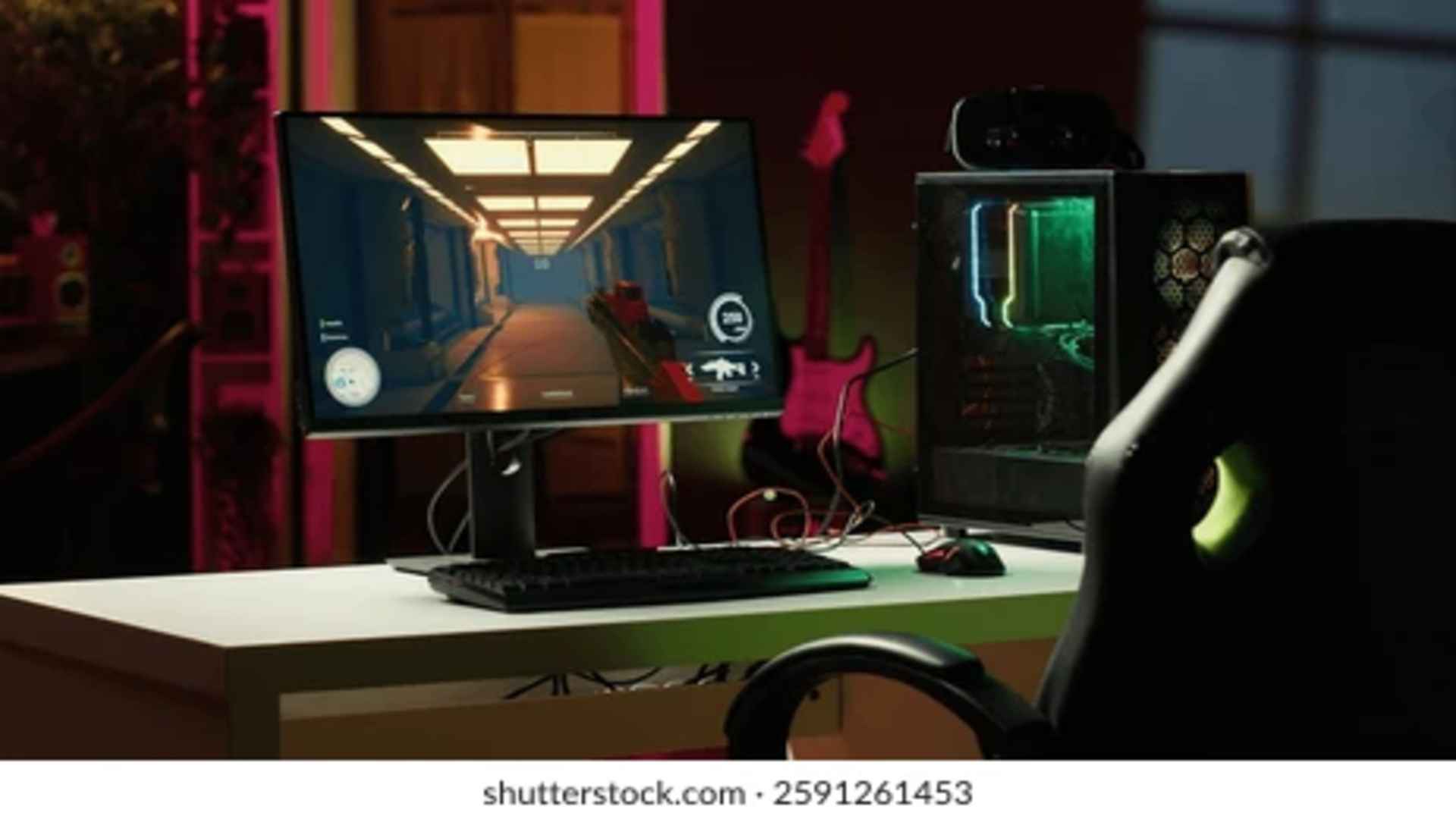
Optimizing your experience in Night City requires a careful balance between fluid performance and jaw-dropping visual fidelity. With the latest game updates changing hardware utilization, finding the right options can drastically change your framerates. This guide explores the ideal configurations to help you enjoy smooth gameplay without sacrificing the beautiful, neon-lit atmosphere.
Prioritizing Impactful Graphics Settings
Several settings in the graphics menu demand massive processing power while offering diminished visual returns. High-resolution shadows and space screen reflections heavily tax both the processor and the graphics card. Reducing shadow quality from ultra to medium can instantly boost your framerate by up to twenty percent.
Volumetric fog resolution is another demanding setting that can be safely dialed down. Lowering this option to medium preserves the smoky dystopian aesthetic while reclaiming valuable hardware resources. Players can enjoy stable performance during intense gunfights by managing these specific visual elements.
Leveraging Advanced Intelligent Upscaling
Modern hardware features dedicated AI capabilities that can drastically improve fluid performance at higher resolutions. Utilizing technologies like Deep Learning Super Sampling or FidelityFX Super Resolution allows the game to render at a lower base resolution before cleanly upscaling the final output. Choosing the quality preset ensures the screen remains remarkably crisp while delivering a significant boost to your overall frames per second.
These upscaling tools act like built-in performance optimization assistants for your system. They allow older graphics cards to stay competitive in dense urban zones where performance typically drops. Activating upscaling is highly recommended for anyone targeting a stable sixty frames per second experience.
Managing Dense Crowds and CPU Limits
The bustling streets of Night City are filled with citizens, but a high crowd density can easily bottleneck your processor. Lowering the crowd density setting to medium reduces the strain on your CPU without making the world feel empty or abandoned. This adjustment is particularly helpful when driving fast through central districts where asset streaming is intense.
Additionally, storing the game files on a fast solid-state drive is mandatory for smooth asset loading. HDD mode should remain disabled unless you are running the game on legacy storage hardware. Taking these minor steps will significantly decrease hitching and sudden performance drops during exploration.
Evaluating the Cost of Ray Tracing
Ray tracing offers breathtaking lighting and realistic reflections at a substantial cost to system responsiveness. For most mid-range systems, turning ray tracing off provides the single largest performance enhancement available. If you possess a high-end graphics card, turning on path tracing requires enabling frame generation to keep gameplay playable.
Ultimately, a higher framerate provides a more immersive combat experience than slightly more realistic puddle reflections. Disabling ray tracing allows you to maximize other essential settings like texture quality and anisotropic filtering. This trade-off delivers the cleanest overall presentation for the vast majority of gaming setups.